Authentication
Mockoon Self-Hosted supports two authentication modes: Local database and OpenID Connect (OIDC) Single Sign-On. Public registration is closed; new users join via single-use invitation links or through enterprise SSO.

Local database (Default)
In local authentication mode, user accounts and credentials are saved in your local database. Users sign in at /login with their email and password, and the team owner can generate invitation links from the Users (/users) page. This mode operates completely offline without external identity provider dependencies.
User management
The Users page (/users) allows the team Owner to oversee team access:
- Review pending invitations, view their creation dates, and revoke unneeded links.
- Monitor active members and pending invitations against your allocated seat count.
- Temporarily disable user accounts to immediately revoke active sessions and tokens without deleting data.
- Permanently remove users from the team and database.
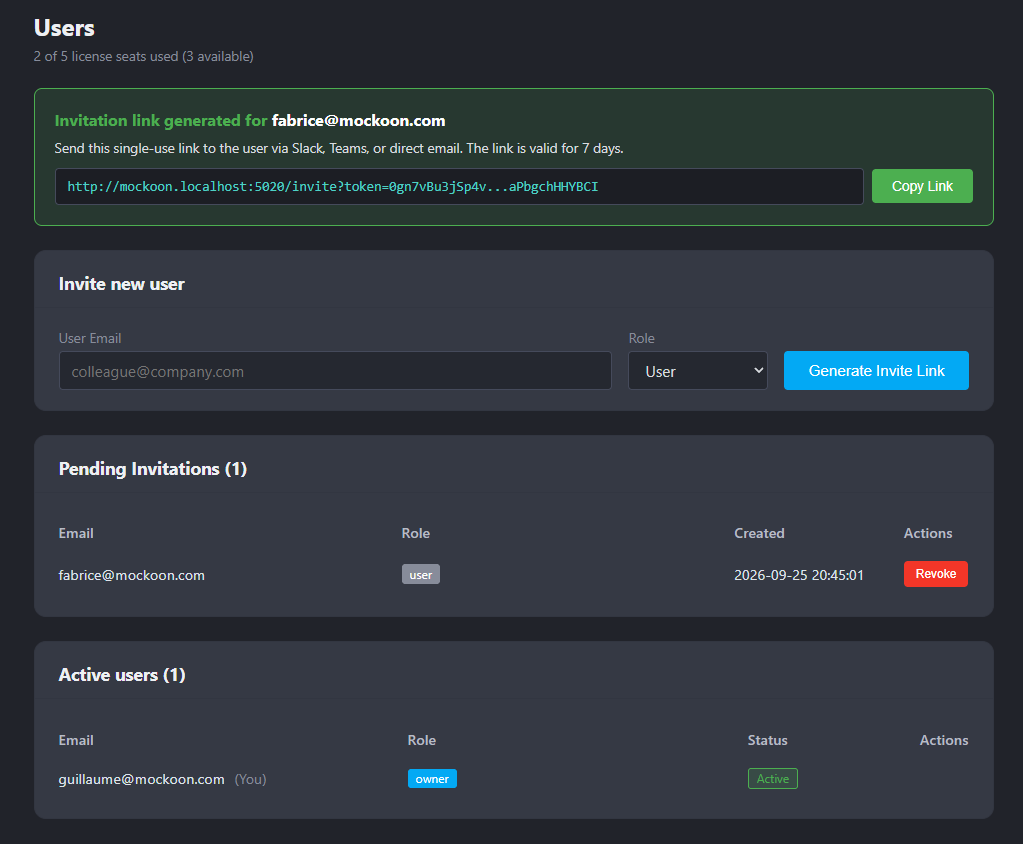
Member invitations
For local accounts, invitations are the primary method for adding new team members.
💡Invitations are only applicable for local accounts and do not apply to users logging in via OIDC SSO.
Creating an invitation link
- Go to Users (
/users). - In Invite New Member, enter the email address and select the role (
UserorOwner). - Click Generate Invite Link.
- Copy and share the generated URL (
https://mockoon.company.com/invite?token=...).
💡 Invitation links are valid for 7 days and expire automatically if unclaimed.
Claiming an invitation
- The user opens the link in their browser.
- The user enters and confirms their password.
- Upon submission, the account is created, added to the team, and logged in.
OpenID Connect (OIDC) Single Sign-On
OIDC Single Sign-On delegates authentication to your Identity Provider (IdP) for centralized user lifecycle management, MFA, and access control.
Supported identity providers include Microsoft Entra ID, Okta, Keycloak, Google Workspace, Auth0, Ping Identity, and any provider supporting OpenID Connect Discovery (.well-known/openid-configuration).
Configuring OIDC SSO
- In your Identity Provider, register a Web Application client.
- Add your Mockoon instance redirect URI as an authorized Callback URI (replace
mockoon.company.comwith your own domain):Copyhttps://mockoon.company.com/auth/oidc/callback - In Mockoon Self-Hosted, go to Settings (
/settings). - Select Single Sign-On (OpenID Connect / OIDC).
- Fill in the details:
- OIDC Issuer URL: Provider discovery endpoint (e.g.
https://login.microsoftonline.com/<tenant-id>/v2.0orhttps://auth.company.com/realms/mockoon). - Client ID: Application client ID.
- Client Secret: Application client secret.
- OIDC Issuer URL: Provider discovery endpoint (e.g.
- Click Save Changes.
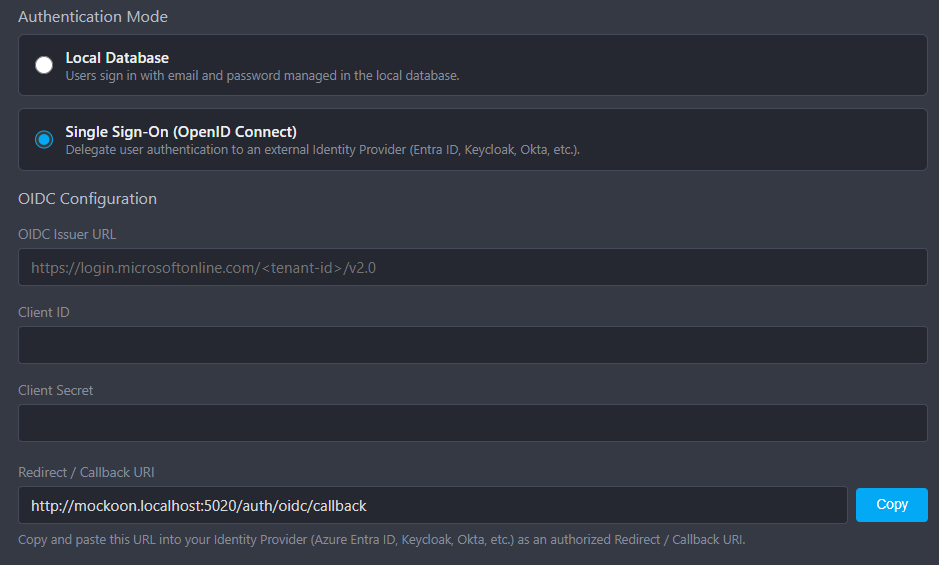
Settings are verified and applied immediately without restarting the server.
Account linking
When an existing user (such as the initial admin) logs in via OIDC with a verified email matching their local account, Mockoon automatically links their account, preserving their team role and environments.
Email domain restrictions
Restrict invitations and logins to approved corporate email domains:
- Go to Settings (
/settings). - Enter comma-separated domains in Allowed Email Domains (e.g.
company.com, engineering.company.com). - Click Save Changes.
When set:
- Invitations can only be generated for matching email domains.
- Local logins and OIDC logins from unapproved domains are rejected.
Leave empty to allow all email domains.
