Administration
Mockoon Self-Hosted includes an administration portal to manage team members, system settings, mock server deployments, and monitoring.
Dashboard
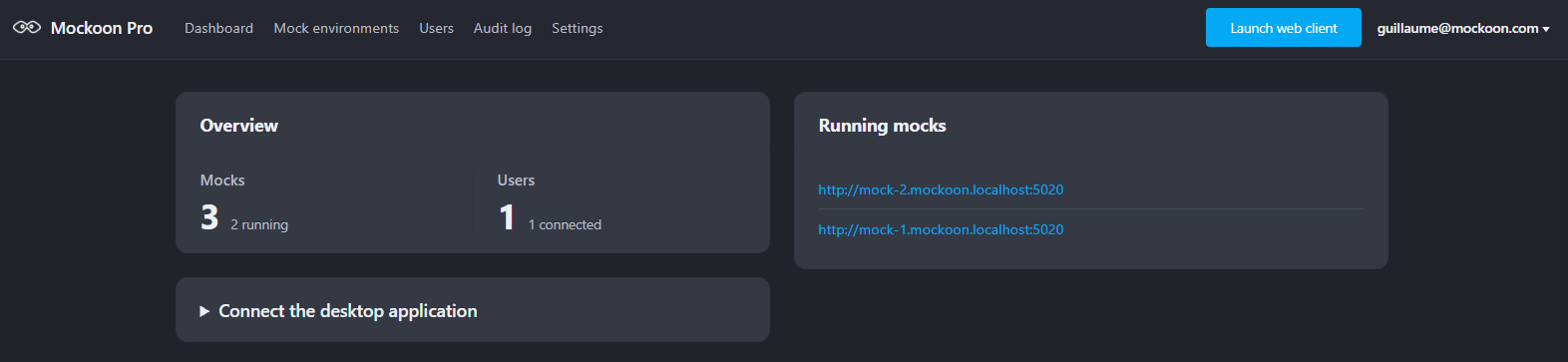
The Dashboard (/dashboard) provides an operational overview of your instance. It displays key metrics (total synchronized environments, active mock instances, registered members, and currently connected users), a live list of deployed mock APIs with direct links to their subdomain URLs, and a single-click button to open the embedded web app (/app).
Settings
The Settings page (/settings) is accessible to the Owner role:
- License & allocation: Review your plan, total license pool, adjust user and instance allocations, and update your license key.
- Allowed email domains: Restrict member invitations and logins to approved corporate domains.
- Authentication mode: Switch between local database accounts and OpenID Connect (OIDC) SSO (see authentication documentation for more details).
Licensing
Mockoon Self-Hosted licenses operate 100% offline. The server validates your license key cryptographically and never contacts external servers.
Your license provides a total pool of licenses that you can freely allocate between users (seats) and deployed mock instances.
Your license key determines:
- Plan tier: Team or Enterprise.
- Total licenses count: Total capacity available for allocation.
- Expiration date: The license validity period.
Allocating licenses
In Settings (/settings), you can adjust how your total licenses are distributed between:
- Users (seats): Number of team members (active users and pending invitations).
- Instances: Number of concurrently running deployed mock APIs.
For example, with a 30-license key, you can allocate 10 seats for your team and 20 instances for mock deployments, and adjust this ratio at any time as your needs evolve.
License renewal & updates
When renewing or upgrading your license:
- Obtain your new license key from your Mockoon customer portal or sales representative.
- Log in as the Owner and go to Settings (
/settings). - Paste the new key into Update License Key.
- Click Save Changes.
The license is applied immediately without restarting the server or interrupting active mock APIs.
Storage & backups
Mockoon Self-Hosted stores all application state (database, settings, user accounts, and mock environments) in a single persistent storage directory (/data in containers).
Backups
- Volume snapshots (Recommended): Take periodic snapshots of the persistent volume attached to
/data. - File archives:
Copy
tar -czvf /backup/mockoon-data-$(date +%Y%m%d).tar.gz -C /data .
Restoring
- Extract your backup archive into the storage directory (
/data). - Start the container with the storage volume attached.
- The server automatically detects existing data and resumes operation without triggering setup.
Upgrades
When updating to a new version, pull the latest image and restart your container. All data in /data is preserved and migrated automatically on startup. See the Installation guide for setup configurations.