Workspaces and access control
Workspaces let you organize synchronized mock APIs and control which team members can access them. Each synchronized mock environment belongs to exactly one workspace, while a user can belong to multiple workspaces or none.
Workspace access applies consistently to synchronized environments, real-time updates, presence information, and mock deployments. Users only see and manage resources belonging to their assigned workspaces.
Access model
- Owners have implicit access to every workspace and manage workspaces and memberships from the administration portal. Owners do not need explicit workspace memberships.
- Users can access only the workspaces assigned to them by an Owner.
- A User with no workspace assignment cannot access, create, synchronize, or deploy remote mock environments. In the desktop application, local environments remain available; in the web application, the Remote list is empty.
- A synchronized environment belongs to one workspace for its entire lifetime. To place it in another workspace, convert or delete it and create it again in the destination workspace.
Workspace membership complements the team roles and permissions. A User role grants permission to work with synchronized mocks, while workspace membership determines which synchronized mocks that user can access.
Create and manage workspaces
Only Owners can administer workspaces:
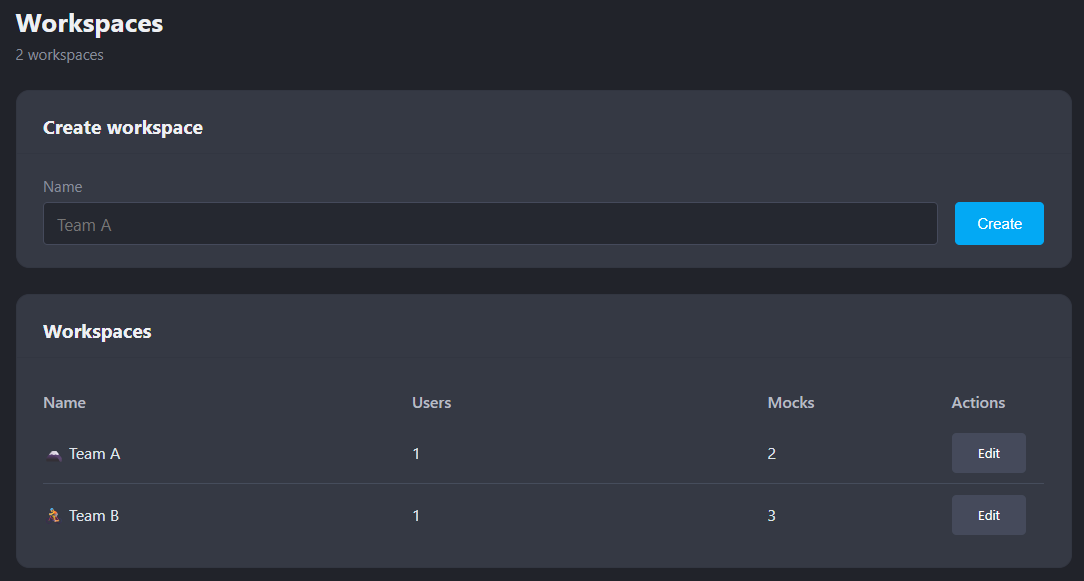
- Open Workspaces (
/workspaces) in the administration portal. - Enter a name and create the workspace.
- Open the workspace to assign one or more enabled team members.
- Return to the workspace at any time to rename it or update its members.
The workspace details page displays its assigned users and synchronized mock environments.
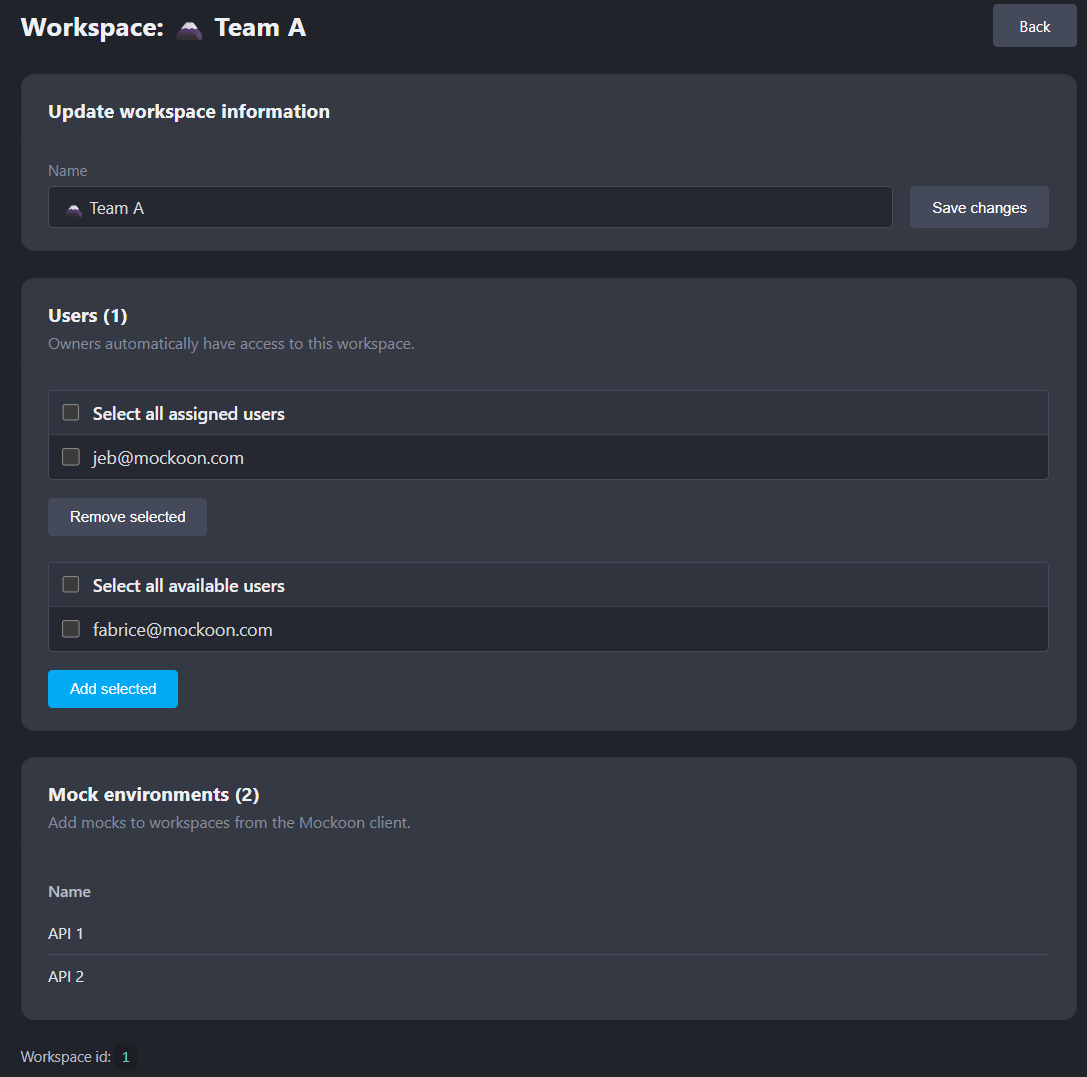
💡 Workspace changes are applied to connected clients immediately. Removing a membership removes the workspace's environments and presence information from that user's active client.
Create synchronized environments
Select a workspace in the Remote list, then create or duplicate a remote environment. The new environment is assigned to the selected workspace.
When All workspaces is selected, Mockoon uses the first accessible workspace. You can delete and recreate the environment if it was created in the wrong workspace.
Filter environments by workspace
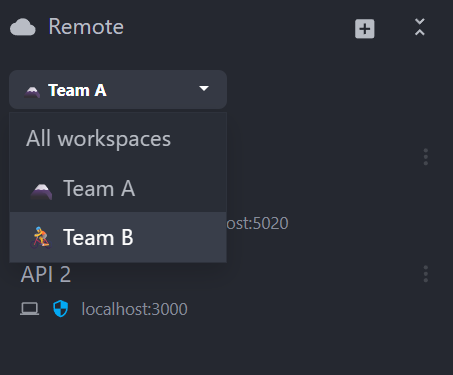
When you can access multiple workspaces, the above-mentioned workspace selector allows you to filter the Remote environments list by workspace.
The selected filter is saved in the application settings. It only changes what is displayed in the menu; synchronization and access-control decisions continue to use the complete set of workspaces assigned to you.